
Migrating from Another Platform
Import your products and categories from Tebex, and understand exactly what does and does not come across.
The data migration tool imports your catalogue from another platform so you don't rebuild it by hand.
The Data Migrations page is not in the main sidebar. Reach it from your account menu → Migrate Data (shown only if you have product_create and tag_create), or from the Moving from a competitor? card on the Onboarding page.
What gets migrated
The gaps catch people out, so read this before you start.
| Migrated? | |
|---|---|
| Products | ✅ Yes, except their commands |
| Categories | ✅ Yes |
| Templates | ⚠️ Supported, but separately. Create them under the Webstore tab |
| Commands | ❌ No |
| Customers | ❌ No |
| Active subscriptions | ❌ No |
| Order history | ❌ No |
Commands do not migrate. Products arrive with their names, prices and descriptions intact, and deliver nothing until you add commands to each one. The store goes live, customers pay, and nothing happens in game.
Budget time to re-add commands to every product before you go live, and test at least one purchase per product type. See Creating a Product.
Existing subscribers do not carry over
Recurring billing agreements live with the old platform's payment processor and can't be transferred. A subscription bought on Tebex stays on Tebex.
Those subscriptions carry on billing on the old platform until they lapse, and they pay out there too. Nothing about the migration cancels them or moves them. An old subscriber lands on PayNow when they next buy something.
What you do with the old store after that is up to you.
Running a migration
1. Collect your Tebex tokens
You need two, both from your Tebex account. The form links to both.
| Token | What it is |
|---|---|
| Headless API Token | Your Tebex public token |
| Plugin Token | Your Tebex plugin token |
The Plugin Token is a secret. Paste it directly into the migration form. Don't post it in Discord, a support ticket, or anywhere else while asking for help.
2. Start the migration
- Open the Data Migrations page (account menu → Migrate Data).
- Click New data migration.
- Set Import data from to Tebex.
- Paste your Headless API Token.
- Paste your Plugin Token.
- Click Start.
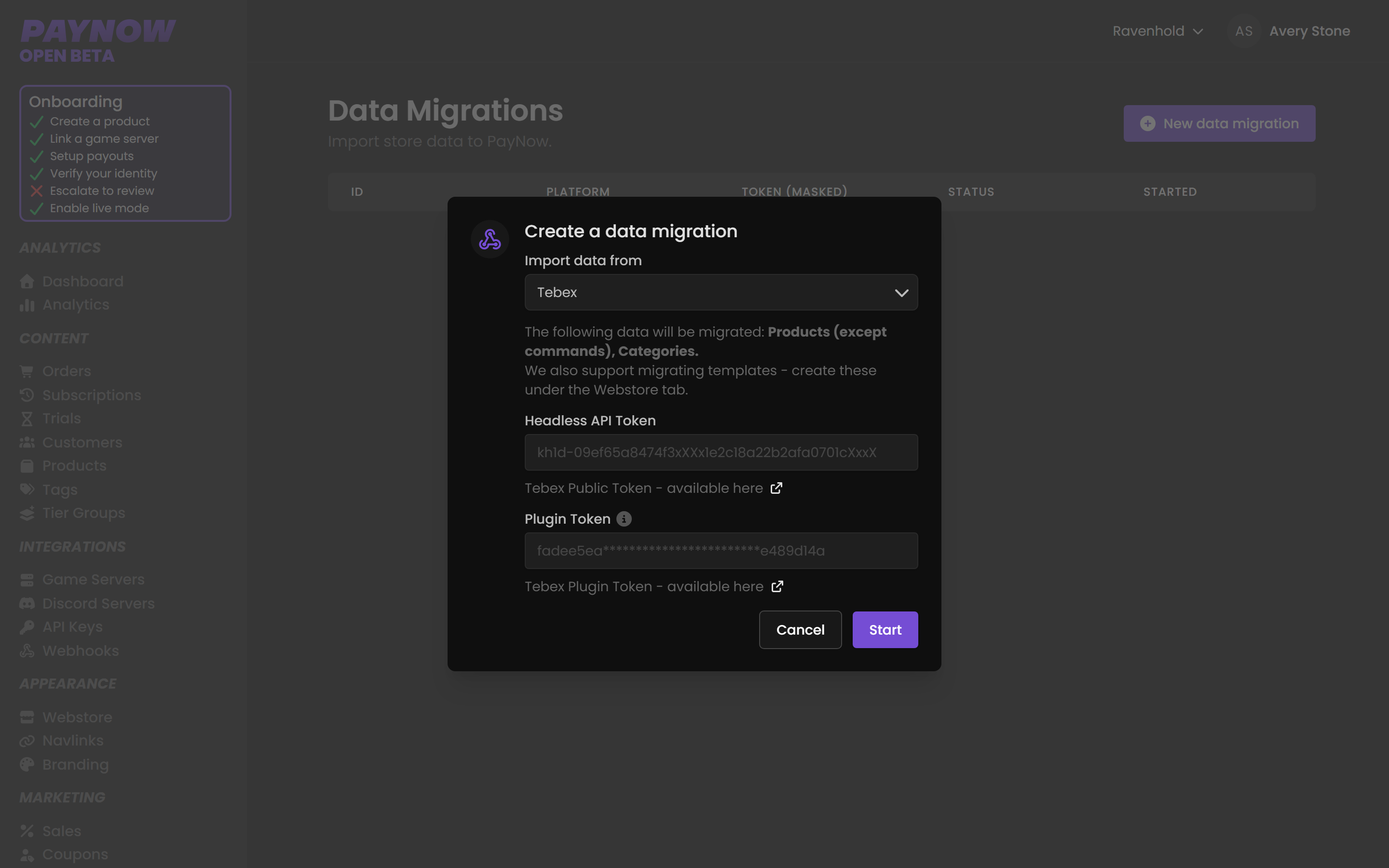
The dialog states exactly what will be imported before you start.
3. Re-add commands
Work through every imported product and attach its commands. See Creating a Product and Global Commands.
4. Migrate your templates
Templates go through the Webstore tab rather than the migration tool. PayNow templates have a Tebex compatibility mode, so an existing Tebex template can be uploaded and run with minimal rework.
5. Test before announcing
Run through the Going Live Checklist and buy at least one product yourself to confirm delivery works.
Suggested order
- Run the data migration. Products and categories arrive.
- Re-add commands to every product.
- Upload or rebuild your template.
- Link your game server.
- Test purchases for each product type.
- Set up payouts and complete verification.
- Go live.