
Templates
Create, upload, preview and activate webstore templates, including running an existing Tebex template through compatibility mode.
A template is the complete design of your storefront. You can have as many as you like; one is Active at a time.
Dashboard → Appearance → Webstore → Templates. Needs webstore_read to view.
Getting a template
| Route | Use when |
|---|---|
| Browse Templates | You want something that works immediately. Start here. |
| New Custom Template | You are building a design yourself. |
| Upload Template | You have a template file already, including one exported from Tebex. |
| Duplicate Template | You want to change a working template without risking it. |
Duplicate before editing a live template: duplicate, edit the copy, preview, set active. It costs one click and means a broken edit never reaches customers.
Open-source templates
Two PayNow templates are published on GitHub, so you can read one in full before committing to a design, or hand it to a developer as a starting point:
Download either as a zip and bring it in with Upload Template. Both ship a schema.json, so once uploaded their colours, logo, server IP and social links are editable as a form in the dashboard without touching any code.
The template page
Opening a template shows its ID (copyable, and worth quoting to support) and its settings.
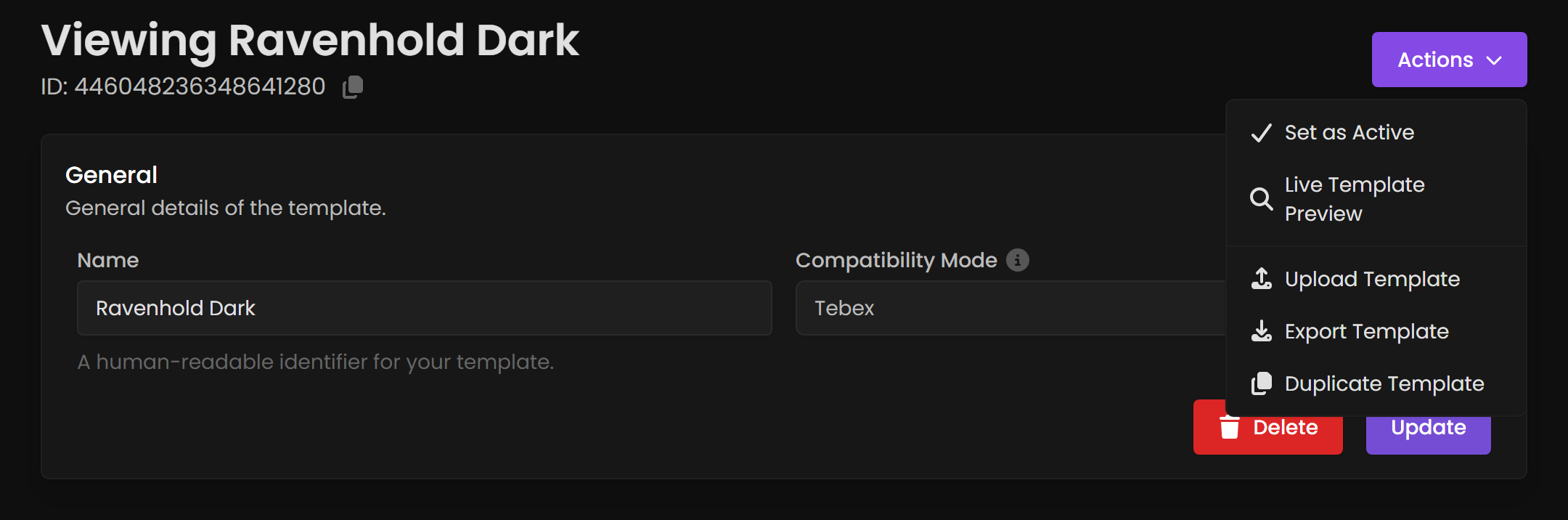
General
| Field | What it does |
|---|---|
| Name | A human-readable identifier for your template. Internal only; customers never see it. |
| Compatibility Mode | Which platform's template conventions this template follows. Set to Tebex to run a Tebex-style template. |
Actions
| Action | What it does |
|---|---|
| Set as Active | Makes this the live storefront design. Takes effect immediately. |
| Live Template Preview | View the template without making it active. Use this before every activation. |
| Upload Template | Import template files. |
| Export Template | Download the template. It is your backup, and how you move a design between stores. |
| Duplicate Template | Copy it. Use before editing anything live. |
| Update | Save your changes. |
| Delete | Remove the template. Not reversible. |
Export before you delete, and export before major edits. Export is the only backup mechanism. There is no version history to roll back to.
Tebex compatibility mode
If you are migrating from Tebex, compatibility mode lets an existing Tebex template run on PayNow with minimal rework. Setting it reveals a Tebex Compatibility Options section:
| Option | What it does |
|---|---|
| Index Description | Rich-text content shown on the index (home) page. |
| Tebex Display Type | How products are displayed within categories, for example images. |
| CMS Pages | Additional content pages carried over from the Tebex structure. |
Compatibility mode is a migration aid, not a permanent home. A native PayNow template gives you the full variable set and modules, so plan to move across once you are settled.
A safe workflow for changing your storefront
- Duplicate the active template.
- Edit the duplicate. See Editing Template Files.
- Live Template Preview the duplicate and click through every page: home, a category, a product, cart, subscriptions, completion.
- Export it as a backup.
- Set as Active.
- Load your real storefront in a private window and confirm.
Keep the previous template. It is your rollback.