
Discord Servers
Link your Discord server so purchases can grant roles, kick, ban or issue invites.
Linking Discord lets purchases trigger actions there. Most stores use it to assign a role, so a supporter's rank shows in the community as well as in game.
Dashboard → Integrations → Discord Servers. Needs discord_server_read.
Linking a server
1. Create the entry
- Go to Integrations → Discord Servers.
- Click Add Discord Server.
- A window appears with instructions to add the PayNow bot and a registration command.
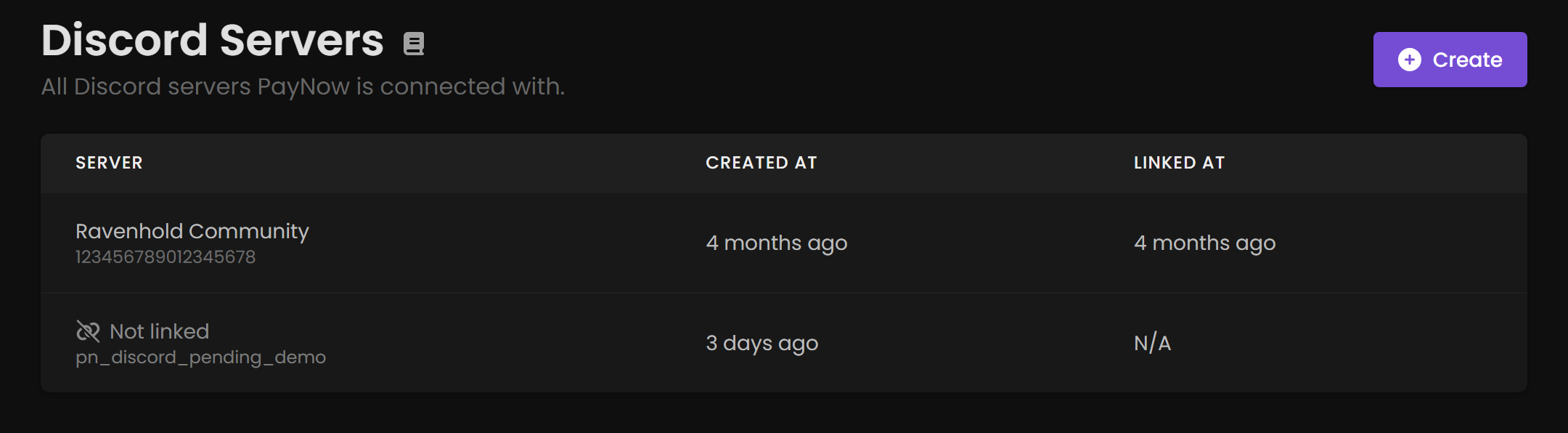
The entry stays at status Not linked until registration completes.
2. Add the bot and register
- Click the entry to open the Discord Server details window.
- Click Add Bot to invite the official PayNow Discord bot.
- Complete Discord's authorisation flow.
- Position the bot's role above the roles you want it to manage in your server's role hierarchy.
- Copy the registration command, for example
/pnregister YOUR_SERVER_KEY. - Run it in any text channel on your Discord server.
Once registered, the entry shows your Discord server name and ID.
Step 4 causes more failures here than everything else combined. Discord won't let a bot manage roles positioned above its own, so the role is never applied. The purchase itself still completes; the failed Discord action is recorded on the order's timeline.
In Server Settings → Roles, drag the PayNow bot's role above every role it needs to grant. Do this before your first sale, not after the first complaint.
What Discord actions can do
Once linked, a product can assign a role, kick a user, ban a user, or generate an invite link. Configure these under Deliverable Actions on the product. Discord Linking walks through the purchase-to-role setup.
Each action is pointed at one of your linked Discord servers, chosen from a dropdown on the action itself. A server that is still Not linked does not appear in that dropdown.
Re-linking and removing
| State | What clicking the entry does |
|---|---|
| Not linked | Opens the linking UI so you can repeat registration. |
| Linked | Opens a details window with Delete and Close. |
Delete fully unlinks the Discord server from your PayNow account. If a server shows as Not linked, click it and run the registration command again.
Customers who forget to link Discord
Someone buys a Discord perk without linking their account, then asks why they have no role. Two fixes: