
Upselling
Offer additional products at checkout to raise order value without adding friction.
Upselling suggests extra products or upgrades while the customer is already checking out.
Dashboard → Marketing → Upselling (store-wide), or a product's edit page (per-product). Needs upsell_read.
Available on every plan, Free and up. Works on both the standard checkout page and the PayNow.js iframe embed.
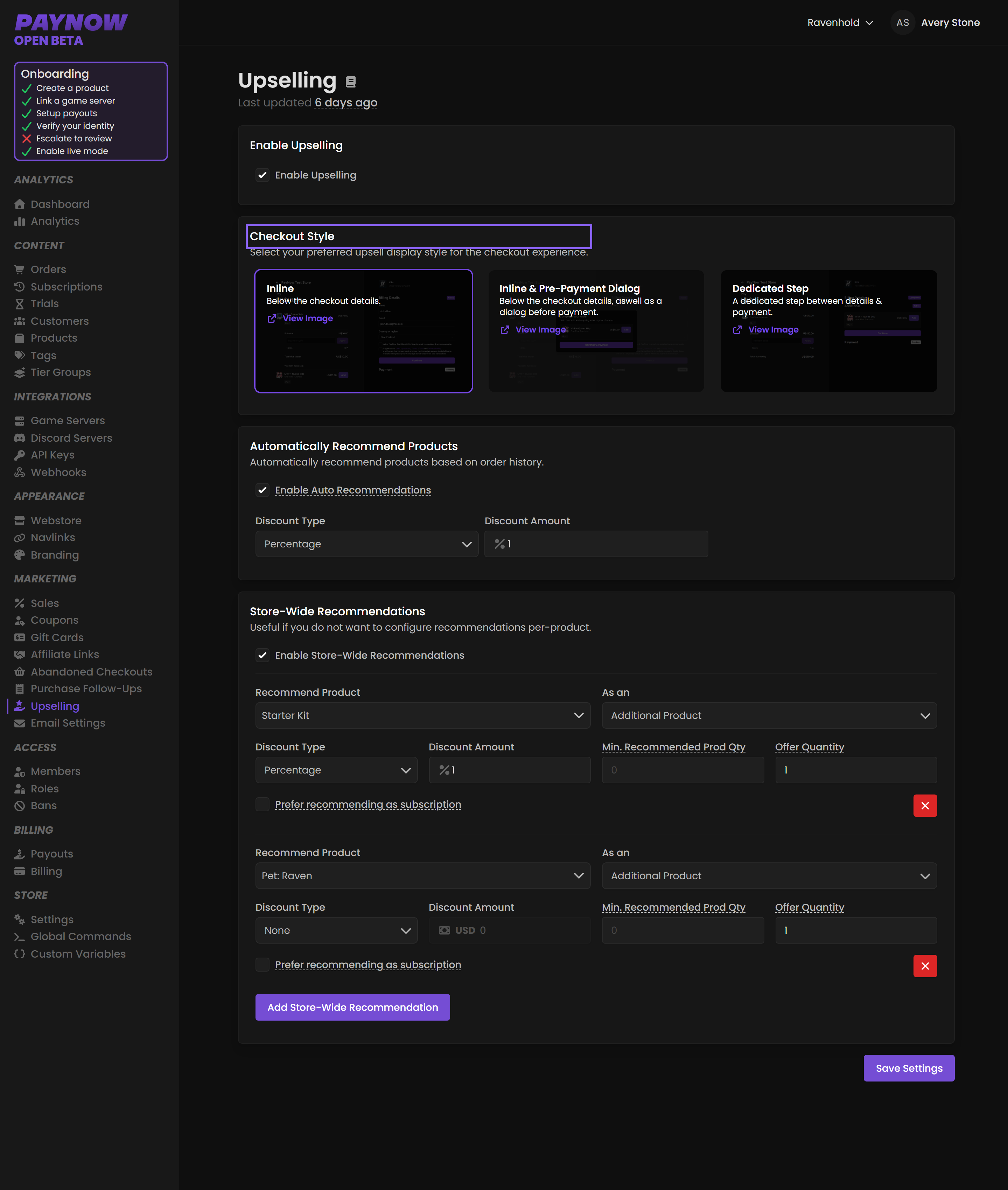
Enable Upselling
Toggle Enable Upselling at the top of the Upselling page. When off, nothing below takes effect.
Checkout Style
How upsells are presented. Each option has a View Image link so you can preview the layout first.
| Style | Where it appears |
|---|---|
| Inline | Below the checkout details, inside the main flow. |
| Inline & Pre-Payment Dialog | Inline and as a dialog just before payment is confirmed, a second chance. |
| Dedicated Step | A standalone step between details and payment. |
Inline is what a store gets if the style has never been set. Of the three, only Inline & Pre-Payment Dialog puts something in front of the customer after they've decided to pay, so compare your checkout numbers before and after if you switch to it.
Automatically Recommend Products
Turn on Enable Auto Recommendations and PayNow selects upsells from your store's order history. Suggestions improve as you sell more, so on a new store they will be weak: start with store-wide recommendations you choose yourself and switch auto on once you have real volume.
You can attach a discount. Discount Type is None, Fixed Amount or Percentage, and Discount Amount is the value applied to the upsell. A small discount lifts take-up without much margin impact.
Store-Wide Recommendations
Specific products offered as upsells across the whole store. Turn on Enable Store-Wide Recommendations, then Add Store-Wide Recommendation.
| Field | What it does |
|---|---|
| Recommend Product | The product to offer. |
| As an | How it is presented. |
| Discount Type | None, Fixed Amount, or Percentage. |
| Discount Amount | The value applied. |
| Min. Recommended Prod Qty | Minimum recommended quantity of the upsell product. |
| Offer Quantity | Quantity offered to the customer. |
| Prefer recommending as subscription | Offer as a subscription rather than one-time, where the product supports it. |
Add more by clicking the button again; remove one with the red X. Turn on Prefer recommending as subscription where you can: converting a one-time buyer into a recurring one is worth more than the single sale.
Per-Product Recommendations
Set on a product's own edit page. Scroll to Upselling, toggle Enable Upselling, then Add Recommendation. Fields match store-wide, plus Min. Product Qty: how many of that product must be in the cart before the upsell shows.
Per-product recommendations take priority. When a customer buys a product with its own upsells configured, those are shown instead of the store-wide list, not in addition to it.
Save your changes
Click Save Settings at the bottom of each page, including the per-product page. Nothing takes effect until saved.
What to offer
Good upsells are cheap relative to the cart and obviously complementary.
| Customer is buying | Good upsell | Poor upsell |
|---|---|---|
| A rank | A currency pack, a cosmetic | A different rank |
| A currency pack | A larger pack, a starter kit | A rank costing 5× the cart |
| A one-time kit | The subscription version | Something unrelated |
Track the effect on average order value on the Dashboard. That is the number upselling exists to move.