
Searching the Dashboard
Find any customer, order, subscription or page from anywhere in the dashboard with one shortcut.
Press Ctrl + K (⌘ + K on a Mac), or click Search for anything at the top of the sidebar. Works on every page.
Search is the fastest way to answer most support questions. A name or an order ID takes you straight to the record, without filtering lists page by page.
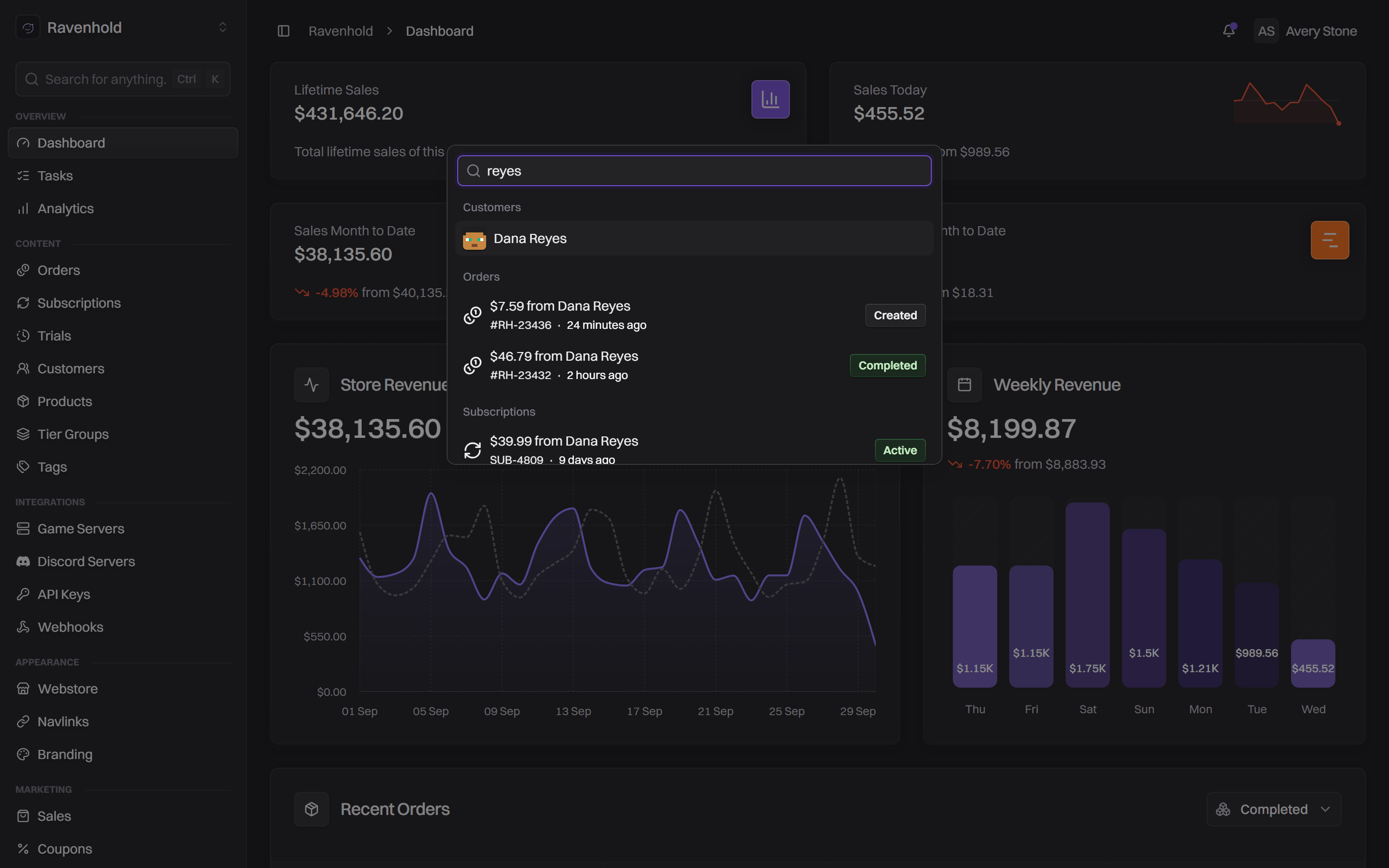
What you can search for
Type a few characters and results appear as you type, grouped by what they are: Pages of the dashboard, then records such as Customers, Orders, Subscriptions, Trials, Products, Tags, Coupons, Sales, Gift Cards, Affiliate Links, Game Servers and Bans. Orders and subscriptions show their amount, customer, ID and status, so you can often answer a question without opening them.
Each group shows its first few matches. When there are more, View all results opens a full Search results page.
Use the arrow keys and Enter to open a result, or click it. Esc closes the window.
Recent pages and filters
With nothing typed, the window shows your Recent Pages, so you can jump back to where you just were.
It can also list Filters: choose one to narrow the search to a single kind of identifier, then keep typing. The filters on offer are listed in the window itself. Press Backspace on an empty search to remove a filter.
Tips
- Ask customers for their order ID first. It's on their receipt and finds the right order straight away.
- Searching a name brings up the customer and their orders and subscriptions together, which is usually everything a support question needs.