Emails
Put your branding on the emails PayNow sends for your store, replace any of them with your own version, and check what was delivered.
PayNow emails your customers on your behalf: receipts, refunds, gift cards, subscription reminders, sign-in links, and the coupons from Abandoned Checkouts and Purchase Follow-Ups. The Emails page is where those emails take on your store's look, where you swap any of them for a version you wrote, and where you look up what was sent to whom.
Dashboard → Marketing → Emails. Needs email_settings_read. The page appears in the sidebar once custom email templates are enabled for your store.
Branding
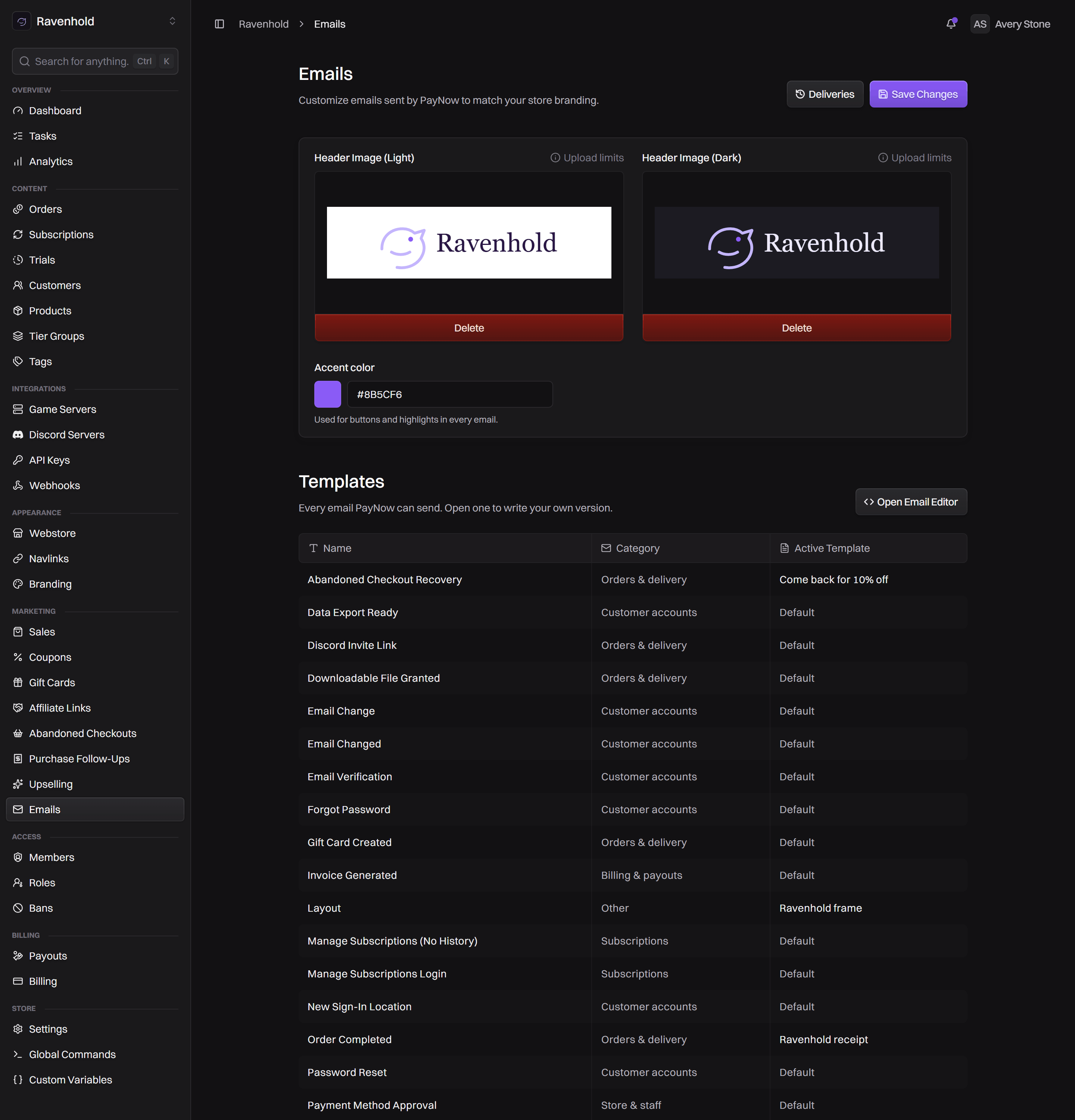
Three settings at the top of the page apply to every email PayNow sends for your store.
| Setting | What it does |
|---|---|
| Header Image (Light) | The image at the top of your emails in mail clients using light mode. |
| Header Image (Dark) | The same, for clients in dark mode. |
| Accent color | Used for buttons and highlights in every email. |
Header images save as soon as they upload. The accent colour needs Save Changes. The recommended width for header images is 256px.
Upload both header images. Many players read mail in dark mode, and a logo drawn for a white background can all but disappear on a dark one.
Templates
Under Templates is every email PayNow can send, with its Category and its Active Template: Default when customers get PayNow's built-in version, or the name of the template you wrote and activated.
| Category | What's in it |
|---|---|
| Orders & delivery | Receipts, refunds, abandoned-checkout and follow-up coupons, downloadable files, Discord invite links, gift cards, trials ending soon. |
| Subscriptions | Cancellations, failed renewals, price changes, upcoming renewals, change verification codes, and the sign-in link for managing subscriptions. |
| Customer accounts | Password resets, email verification and changes, sign-ins from a new location, sign-in links, completed data exports. |
| Billing & payouts | Payouts created and completed, and new PayNow invoices. These go to your team, not your customers. |
| Store & staff | Team invites, store lock changes, trust events, and payment method approvals. These go to your team and the people you invite. |
| Other | Layout: the frame every other email sits inside, with your header and footer. |
Open an email to see its built-in default and every template you've written for it, with each one's state. A lock icon next to an email means it can't be replaced with your own version; you can still open its default to see what customers receive.
A template's page
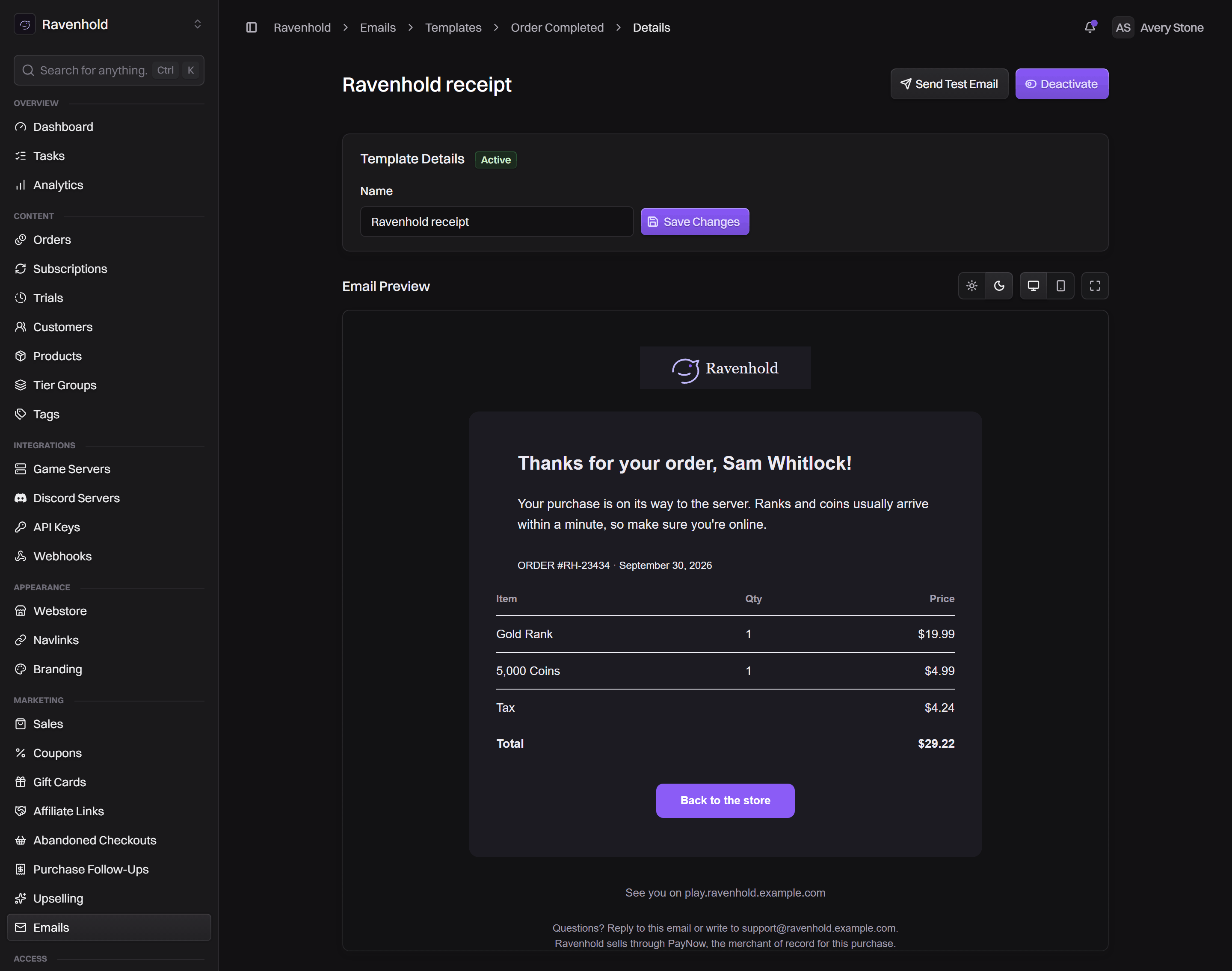
Open a template to preview it and decide whether customers get it.
- Email Preview renders the template with example values, wrapped in your layout. Switch between light and dark, desktop and mobile, or open it fullscreen.
- Send Test Email renders it with the same example values and sends it to the address on your PayNow account.
- Activate makes it the version customers receive. Only one template per email is active at a time, so activating one replaces the last. Deactivate puts the email back on PayNow's default.
- Template Details shows the template's state and lets you rename it.
A template moves through three states: Inactive while you work on it, briefly Activating while PayNow switches it on, then Active.
To write a template or change what one says, click Open Email Editor next to Templates. Editing Email Templates covers the editor, MJML and the variables each email receives.
Activating does not check your template for mistakes. A missing section or a typo in a variable name reaches customers exactly as written. Preview it, send yourself a test, and open the test in a couple of mail clients before you activate.
Delivery log
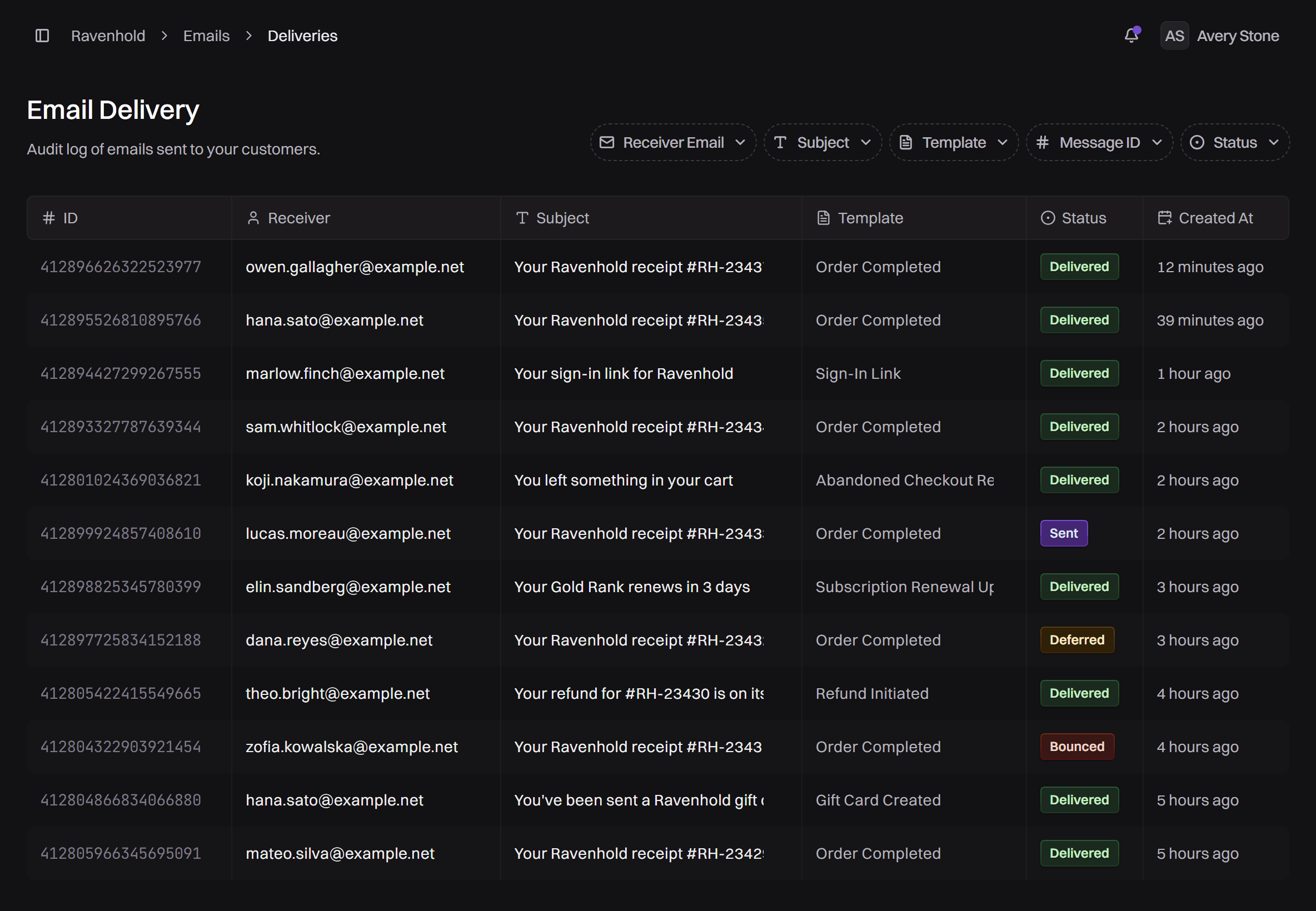
Click Deliveries at the top of the Emails page for the Email Delivery log: every email sent to your customers, with its Receiver, Subject, Template, Status and when it was created. Filter by Receiver Email, Subject, Template, Message ID or Status.
| Status | Meaning |
|---|---|
| Pending | Queued, not sent yet. |
| Sent | Handed to the mail provider; delivery not confirmed yet. |
| Delivered | The customer's mail server accepted it. |
| Deferred | The receiving server asked to try again later. It usually goes through on retry. |
| Bounced | The receiving server rejected it, most often because the address doesn't exist. |
| Dropped | The mail provider didn't send it. |
| Failed | It couldn't be sent. |
Click a row for its details: the Message ID, any Error the receiving server gave, and when it was created, sent and opened.
When a customer says they never got their receipt, search the log for their address before anything else. Delivered means it reached their mailbox, so ask them to check spam and other tabs. Bounced often means a typo in the address they paid with; the order's billing details show what they entered.
Permissions
| Permission | Lets a team member |
|---|---|
email_settings_read | Open Emails, templates and the delivery log. |
email_settings_update | Change branding, send test emails and open the Email Editor. |
email_template_update | Rename templates. |
email_template_activate | Activate and deactivate templates. |
Set these on a role.