
Syncing Product Changes
Push a product's new commands, game servers and Discord actions to the subscriptions and inventory items customers already have.
Every time you save a product, PayNow creates a new version of it. New purchases get the latest version, but subscriptions and inventory items that already exist stay on the version they were bought with. Change a rank's command today, and next month's renewals still run last month's command, unless you sync.
Dashboard → Content → Products → (a product) → Actions → Sync Product Changes. Needs product_dependent_migration_create and product_dependent_migration_read.
Editing a product does not update what existing customers receive. If you add a game server, fix a command, or change a Discord role, sync the product, or existing subscribers and owners keep the old behaviour.
What a sync changes
A sync updates the deliverables of existing subscriptions and active, unused inventory items: commands, game servers, Discord actions and the rest of what the product hands out.
It does not change existing subscriptions' renewal prices or renewal intervals. Subscribers keep renewing at the price and interval they signed up for.
Syncing after you save
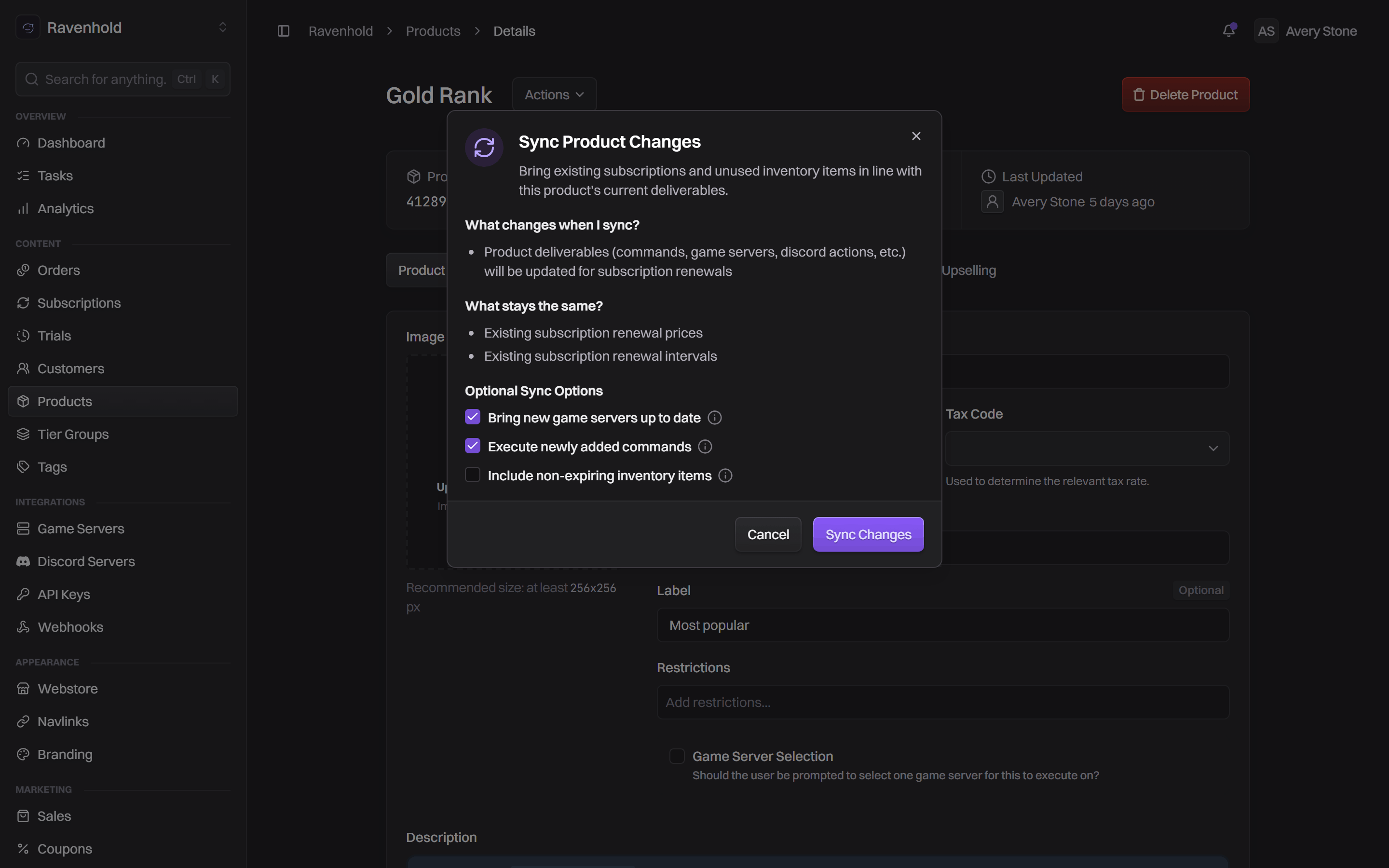
When you save a product with a new or edited command, or a newly added game server, the Sync Product Changes dialog opens with a Commands or Game Server Changes notice. Click Sync Changes to bring existing customers up to date, or Skip Sync to leave them on the version they have.
Removing a command or changing only Discord actions doesn't open the dialog. Sync manually from the Actions menu.
Syncing manually
- Open the product.
- Click Actions → Sync Product Changes.
- Choose the sync options.
- Click Sync Changes.
A progress window shows Sync in Progress while existing subscriptions and inventory items are updated, then Sync Completed with how many were changed.
Sync options
| Option | On by default | What it does |
|---|---|---|
| Bring new game servers up to date | Yes | Runs all of the product's existing commands on game servers you newly added. |
| Execute newly added commands | Yes | Runs newly added commands for every active inventory item. |
| Include non-expiring inventory items | No | Also includes items handed out while the product had no Should Expire set. |
Leave the first two on when you've added a server or a command and want current owners to get it now. Turn them off if the new command should only run on future renewals and purchases.
Include non-expiring inventory items re-runs commands for past lifetime purchases. With either option above also ticked, commands run again for everyone who bought the product while it never expired. That is usually only what you want for a lifetime product, not one that expires after a set time.
Sync history
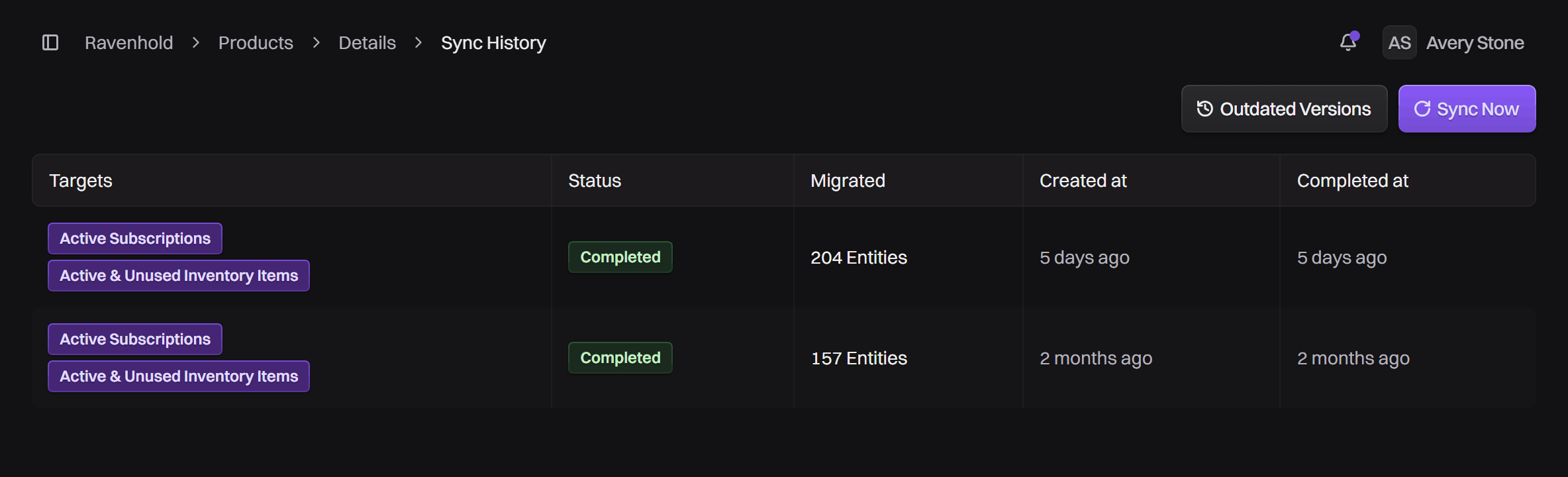
Actions → Sync History lists every sync that changed something, with its Targets, Status, how many entities were Migrated, and when it was created and completed. Click a sync for its details, version by version. Syncs with nothing to process don't appear.
| Target | What it covers |
|---|---|
| Active Subscriptions | Subscriptions still renewing. |
| Active & Unused Inventory Items | Items customers own that haven't been used or expired yet. |
| Non-Expirable (Used) Delivery Items | Lifetime items, included only with Include non-expiring inventory items. |
Outdated Versions shows how many subscriptions and items are still on older versions of the product, or All dependents up to date when none are. Sync Now opens the same sync dialog.
Most stores never need this page. Use it to confirm a sync finished, or to check whether anything is still on an old version before you change a product again.